AI Music Video Generator: Write It in Music, Film It in Video
Upload your photo, set Reference mode to Media references, add a slice of your song of up to 15 seconds under Reference audio and press Generate video. No song yet? Make it in Music →
Scene
AI Music Video Generator
Models
Seedance Series
Seedance 2 Mini: text, frame and media reference video generation
0 credits
4–15s
Media references
Veo Series
Google's latest model with exceptional quality output
150 credits
Up to 8s
16:9/9:16
Upload Image
JPEG / PNG (Max 5MB)
Upload Image
JPEG / PNG (Max 5MB)
(Optional)
Upload Image
JPEG / PNG (Max 5MB)
(Optional)
Upload Image
JPEG / PNG (Max 5MB)
(Optional)
With one image, Grok follows the image aspect ratio.
Seedance and MiniMax also bill the actual duration of input videos. Documents: maximum 50 pages.
10s
Public Visibility
When this option is enabled, the output video may be selected by AI Generate and published to the Explore.
Notification
This is a notification message
AI Prompt Studio
Professional prompt crafting powered by AI
Loading...
Transform your ideas into perfect prompts with intelligent assistance
AI music video generator clips with sound on Ghibliia
A rooftop synth-pop singer and a lo-fi producer at his desk, re-cut from 10-second originals with their sound.
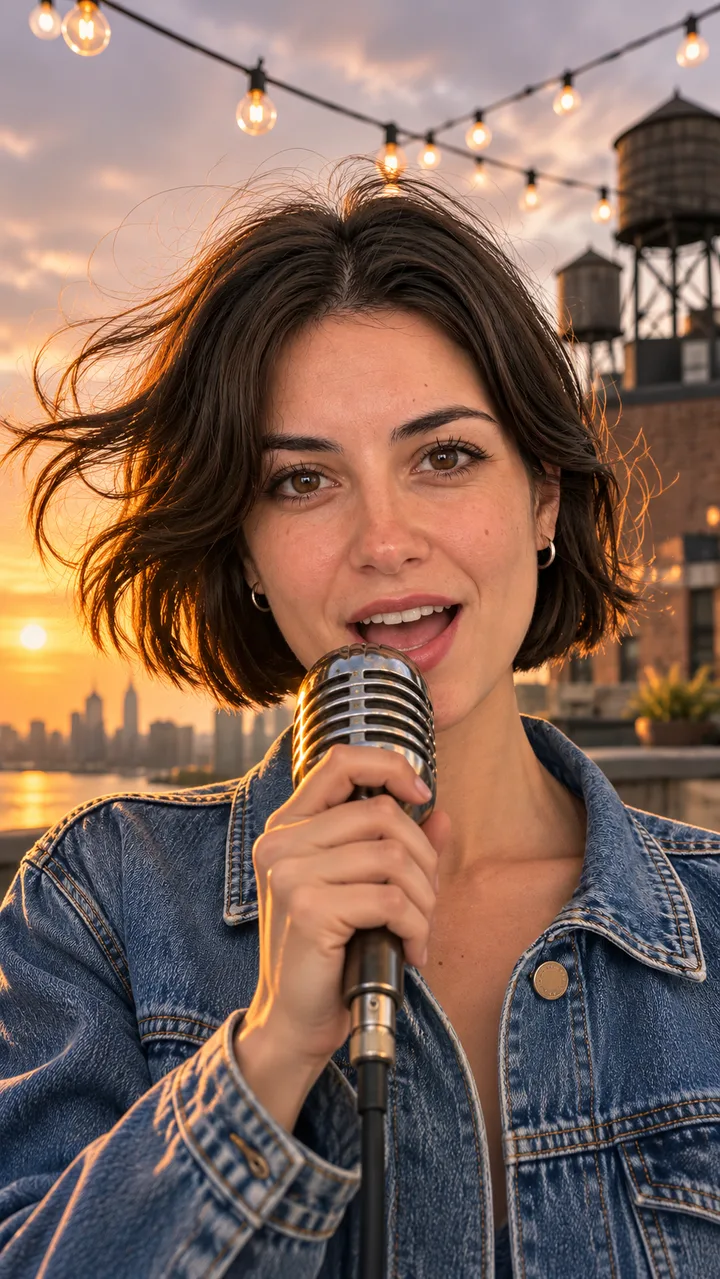
Both samples start from original AI portraits of adults, not real people. For Rooftop chorus, a portrait of a woman with a short dark bob and a denim jacket became a vertical still on a rooftop at sunset. That still plus a 12-second slice of Rooftop Lights, an original wordless la-la synth-pop chorus at 118 BPM, went into Seedance 2.0 Fast as references, which returned a 10-second clip with sound on 5 November 2026.
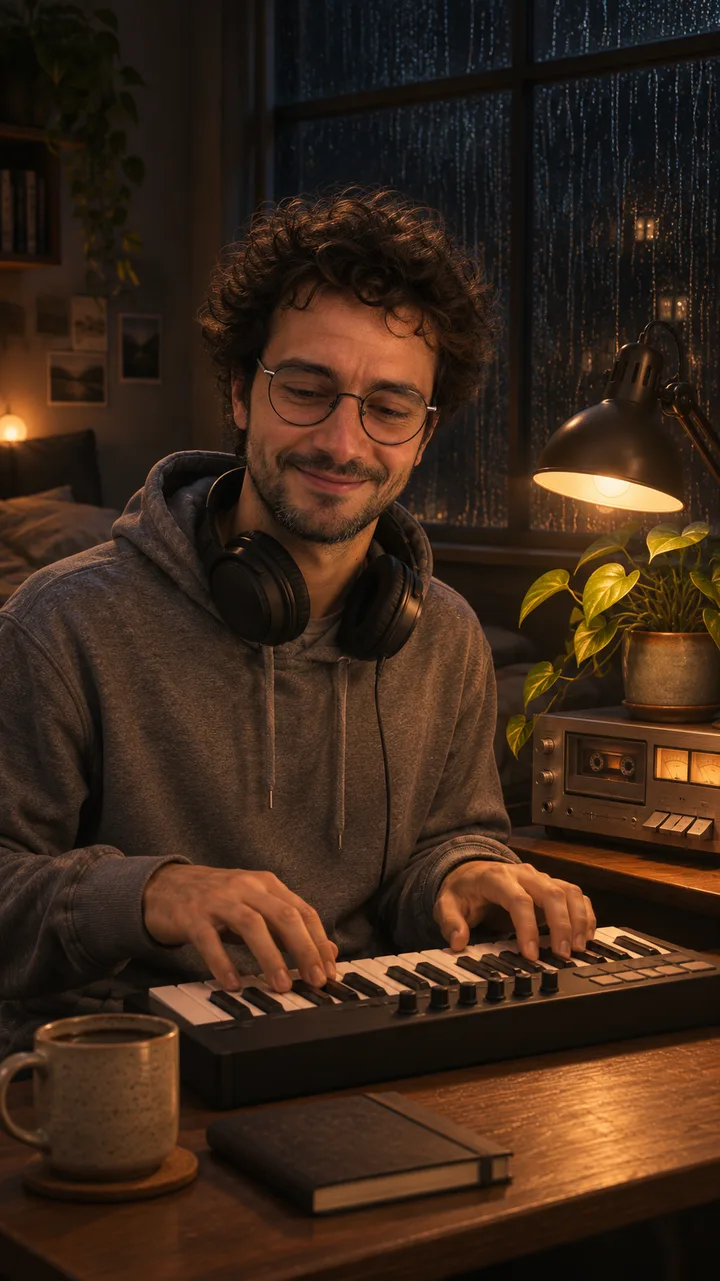
Bedroom lo-fi took the same route with a curly-haired man in round glasses and a grey hoodie, and a 12-second slice of Lamp Light Loop, an instrumental lo-fi track at 80 BPM. Both songs came from Suno V6, the same model you can pick in Music.
What plays here is a re-cut of each clip: about 8.8 and 9.3 seconds, a gentle reframe, colour and speed adjustments, no mirroring, and the ghibliia.com mark top left. The sound is kept, but it is not the original song: the model generated it while following the slice, and after the speed change the chorus sits at about 117 BPM and the loop at about 81. Videos start muted; turn the sound on in the player. The re-cut used no credits. Use this photo →
PhotoStillVideo
Rooftop chorus
She sings into a vintage mic in close-up with the low sun behind her; around the 3-second mark the shot cuts to her profile against the buildings and ends on a wide view of the rooftop, string lights overhead and the city by the water.
He smiles and plays a small MIDI keyboard with headphones round his neck; the camera drifts to the rain-streaked window and the lit desk lamp, then comes back to his hands on the keys, so the clip loops cleanly.
From track to clip in the AI music video generator
Upload the photo, switch to media references, drop a 10 to 15 second slice into reference audio.
Everything happens in the workbench above, which opens on Seedance 2 Mini. Seedance 2 Mini makes clips of 4 to 15 seconds and Seedance 2.5 4 to 30; both offer vertical 9:16.
1
Your photo as the reference image
Under Reference mode, change First / last frames to Media references. The two modes cannot be combined in one run, so a song always goes in this way. Put the photo under Reference images; Seedance 2 Mini takes up to 9. A front-facing, evenly lit photo works best. To build a still with the setting first, use Image.
2
A slice of the song
Add the slice under Reference audio as WAV or MP3, up to 15 MB per file. Seedance 2 Mini takes up to 3 clips adding up to 15 seconds; Seedance 2.5 up to 30 seconds. Cut 10 to 15 seconds that start on a strong hit, such as the drop into the chorus. No track yet? Make one in Music.
3
Make the video
Pick a scene above the workbench, leave Generate audio ticked and press Generate video. The button shows the model, length and credits before anything runs, and you can download the clip when it is done. Create video →
Your own lyrics in the AI music video generator
Pick custom mode in Music, paste the lyrics, name the style, download the MP3.
Music runs Suno v3.5, v4, v4.5, v4.5 Plus and V6. Lyrics you write are yours; the US Copyright Office's report of 29 January 2025 says material generated purely by AI is not protected.
Custom mode and your lyrics
Simple mode takes one description. Custom gives you three fields: Title, Styles and Lyrics. Paste your verses and chorus into Lyrics; every song downloads as an MP3.
Styles
Type the sound into the Styles field. These three work as they are:
Switch on Instrumental for a backing track with no voice, like the one in Bedroom lo-fi. It suits a Spotify Canvas loop or a background that does not fight with on-screen text. Go to Music →
What the AI music video generator hears
It follows the rhythm of the slice; the clip's sound is generated again, so it is not your exact track.
What it follows
Tempo: cuts and camera moves land on the hits in the slice.
Energy: a fast chorus gets more movement than a slow loop.
Voice: if the slice has singing, the mouth can follow it; medium shots hold up better than close-ups.
What changes
The clip's sound is generated from scratch; it is not your file.
Vocals, instruments and mix can sound different even when the beat matches.
The clip runs as long as you set in the workbench, not as long as the slice.
Your full song in the editor
First / last frames mode takes no reference audio, so a full song is built from several Media references clips, one per section (intro, verse, chorus), all with the same photo. Join them in your editor, mute the clips and lay your original MP3 underneath: then the video sounds exactly like your track. Try it with my song →
Posting an AI music video generator clip
9:16 for TikTok and Reels, YouTube's AI label for realistic music, a 3 to 8 second loop for Spotify Canvas.
TikTok and Reels
Vertical 9:16, the format the clip already comes in. Join the clips in your editor and add lyric captions there; the workbench does not write text into the video.
YouTube
YouTube asks you to disclose realistic altered or synthetic content in YouTube Studio, including AI-generated music that is the main focus of the video. Clearly unrealistic or animated visuals do not need the label.
Spotify Canvas
A vertical 9:16 loop of 3 to 8 seconds, 720 to 1,080 px tall, as MP4 or JPG. Spotify suggests avoiding singing footage and rapid cuts, so a calm clip such as Bedroom lo-fi, trimmed down, fits best. Make my clip →
More stages for the AI music video generator
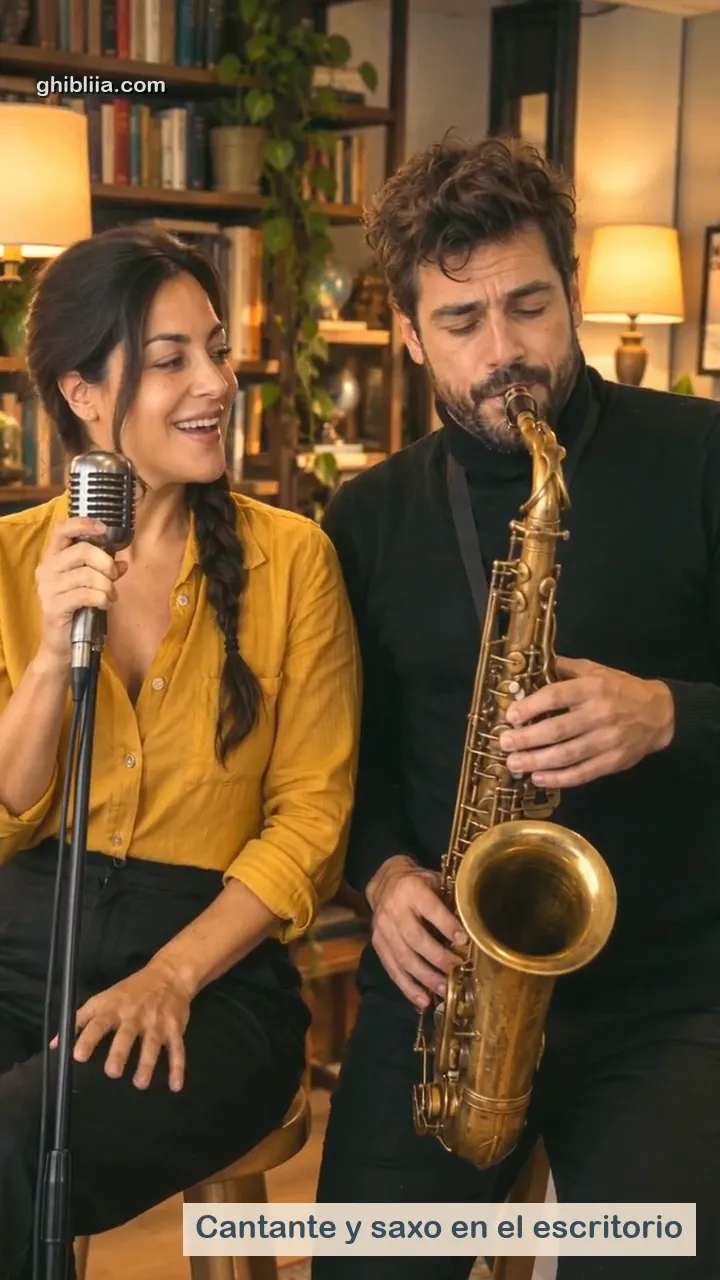
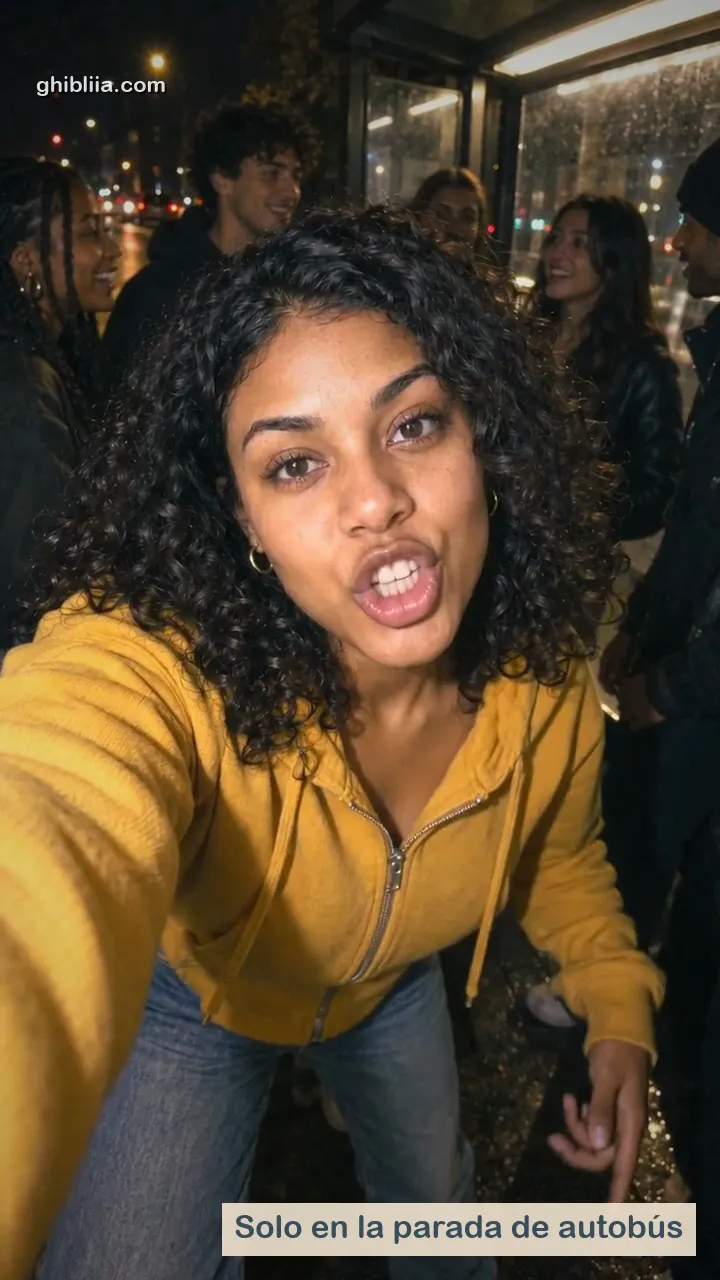
Tiny Desk, a mic check or a piano scene, then back to your song here.
It takes a song plus a look, such as a photo, a prompt or a style, and returns video whose motion follows the music. Dedicated tools map the tempo, beats and song sections first; here you hand the model a slice of the song as Reference audio.
Can I make one for free?
HeyGen lets you start without a card and Freebeat lists a free plan with 500 credits; free tiers usually cap length, resolution or downloads. On Ghibliia the button shows the credit cost before every run.
How long can each clip be?
Seedance 2 Mini makes 4 to 15 seconds per clip and Seedance 2.5 up to 30. For a whole song, generate one clip per section and line them up in an editor over your original MP3.
Will the singer's lips match my track?
With reference audio the model can follow the vocal, as in Rooftop chorus, but singing close-ups are the hardest shot; medium shots come out better. HeyGen and Neural Frames offer lip-sync templates for full songs.
Who owns the result?
Your lyrics and your recording are yours. The US Copyright Office's report of 29 January 2025 says purely AI-generated material is not protected, while human-authored parts such as lyrics, recordings or a creative arrangement can be.
Why does the face drift between clips?
Every clip is a fresh generation. Use the same photo as the reference image for each one and keep the same wording for clothes and setting.